


Description
SPECIFICATIONS
Application: Desktop
Black and White Response Time: 1 ms
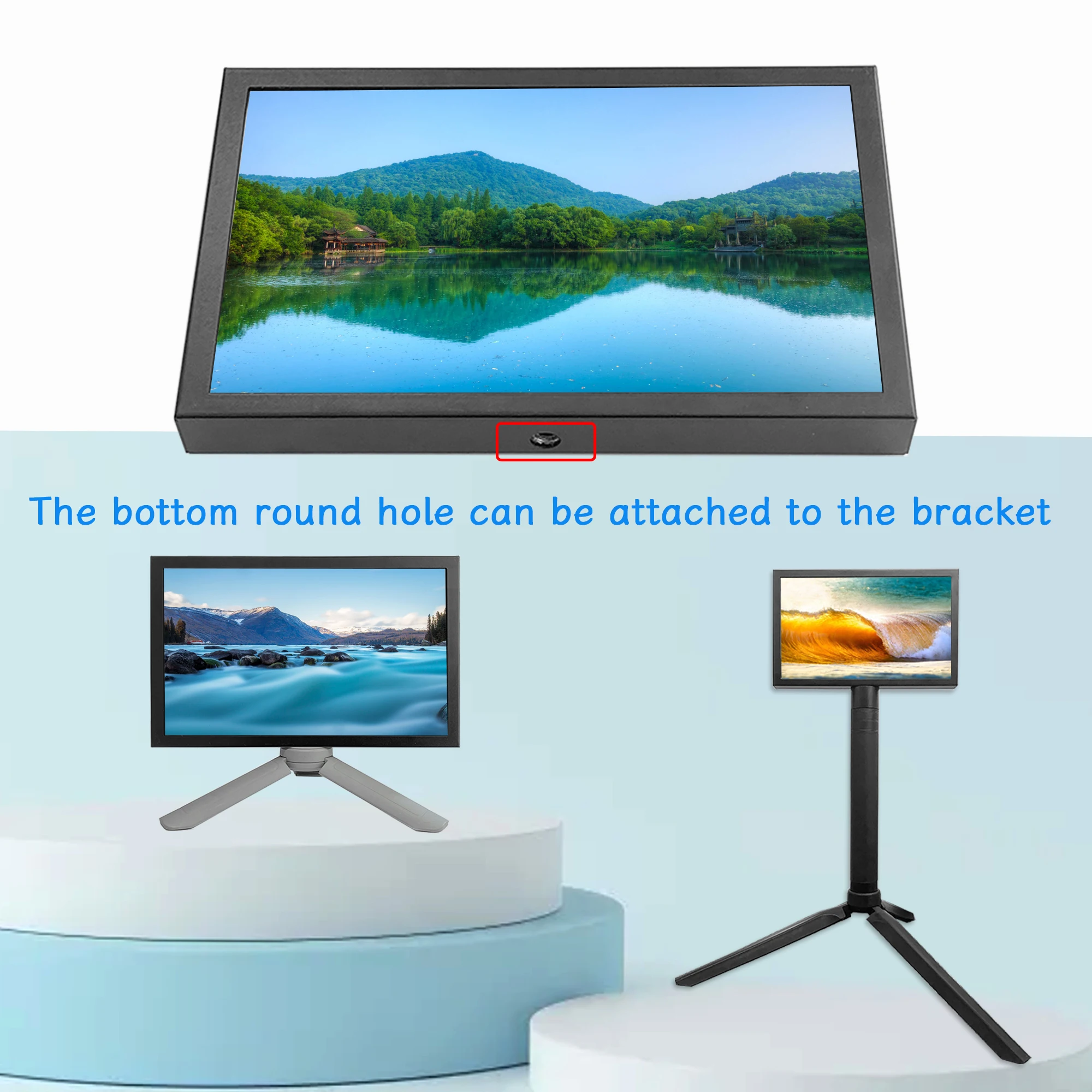
Bracket Type: Other
Brand Name: KEPIFO
Brightness: 500cd/m
Built-in Speaker: Yes
Certification: CE
Contrast Ratio: 800:1,850:1
Display Ratio: 16:10
Display Size: 7
Feature: Usb port,Speaker,Gaming
High-Dynamic Range: NONE
High-concerned chemical: None
Horizontal Viewing Angle: 178°
Interface Type: HDMI-Compatible
Launch Date: 2016
Origin: Mainland China
Panel Type: IPS
Pixel Pitch: 0.255mm
Products Status: STOCK
Refresh Rate: 60 Hz
Resolution: 1024x600,1024x600
Response Time: 2ms
Screen Type: LCD
Screen curvature: NONE
Vertical Viewing Angle: 178°
kepifo Model: EM713

Specification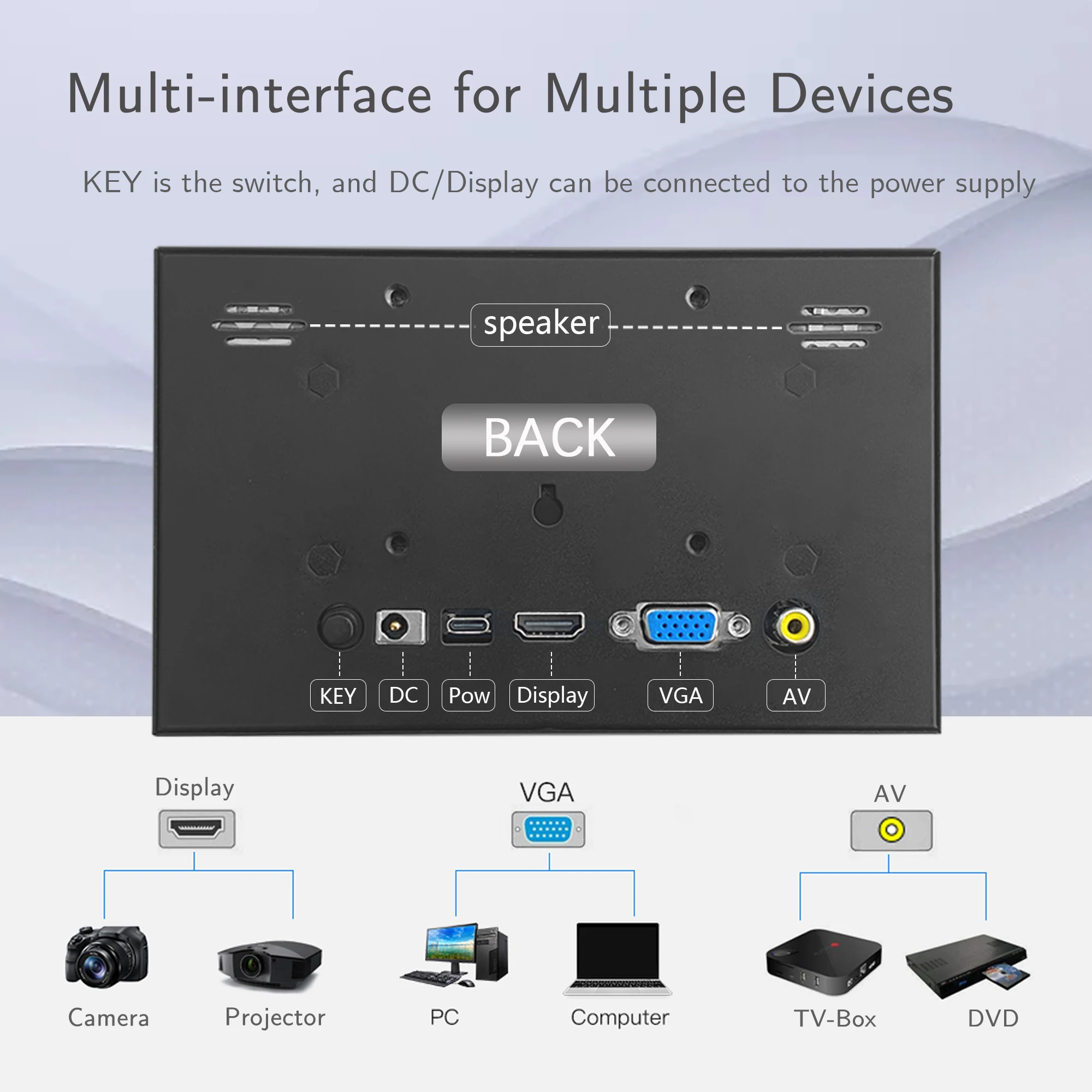
Screen size: 7 inch Displ
Brightness: 500cd/㎡
Display Component: Color TFT-LCD
Resolution: 1024*600 Pixel
Input Signal: DC//HD/VGA/AV/Type-C
Power: DC 12V , Type-C:5V1A
Built-in 1.5W hi-fi loudspeaker
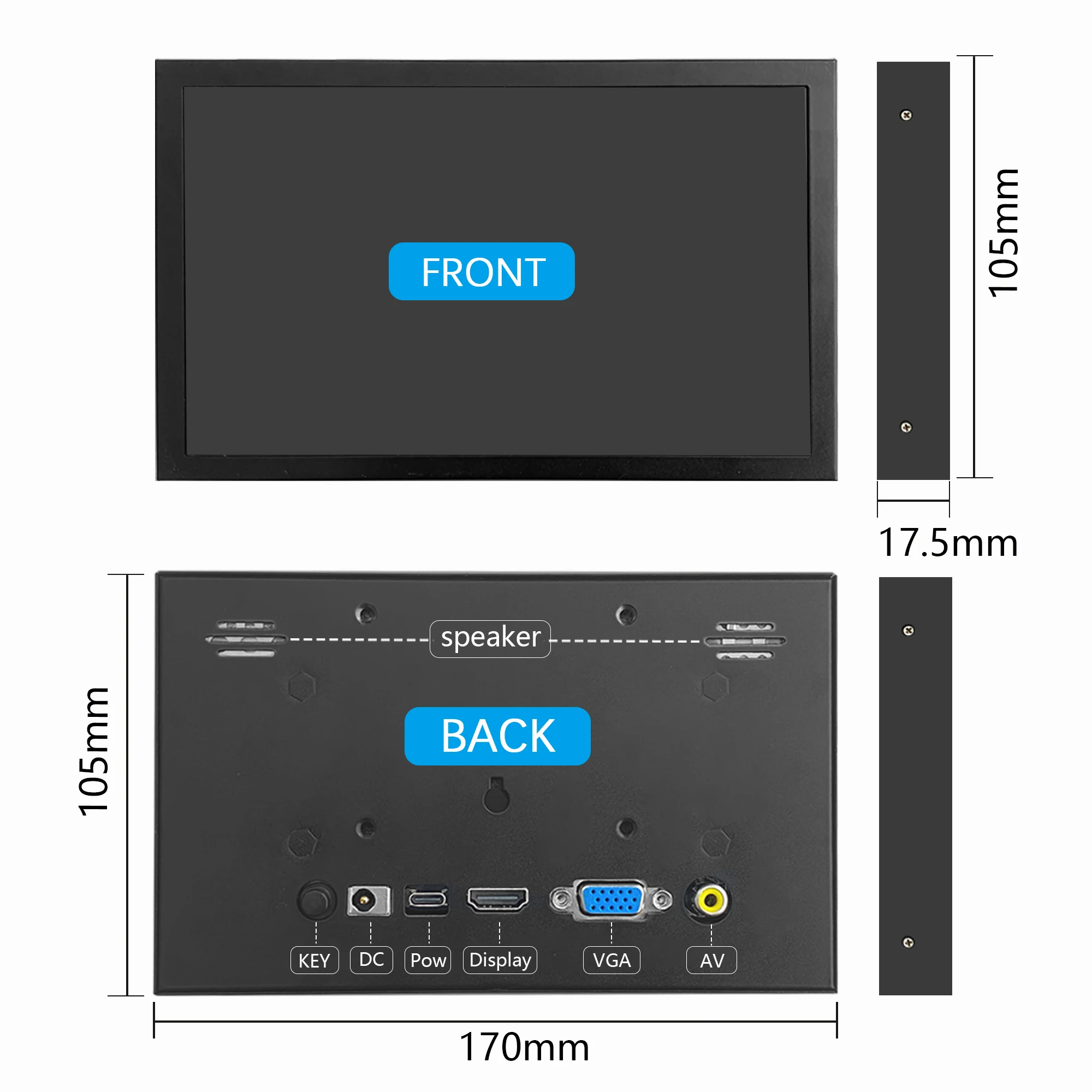
Product Dimensions: 170*105*17.5mm
support adjust the brightness, volume


Step 1, Install Raspbian official image
Download the latest image from the official download.
Install the system according to the official tutorial steps.
Step 2, modify the “config.txt”
After the programming of Step1 is completed, open the config.txt file of TF card root directory and
add the following code at the end of the file, save and eject Micro SD Card safely:max_usb_current=1
hdmi_force_hotplug=1
config_hdmi_boost=7
hdmi_group=2
hdmi_mode=87
hdmi_drive=1
display_rotate=0
hdmi_cvt 1024 600 60 6 0 0 0
Step 3, Drive the 7inch HDMI EM713 with the Raspberry Pi
Insert the TF Card to Raspberry Pi, connect the Raspberry Pi and LCD by HDMI cable;
connect USB cable to one of the four USB ports of Raspberry Pi,and connect the other end of the USB cable to the USB port of the LCD;
then supply power to Raspberry Pi; after that if the display and touch both are OK,it means drive successfully (please use the full 2A for power supply).
How to use as PC monitor
Connect the computer HDMI output signal to the LCD HDMI interface by using the HDMI cable
Connect the LCD's USB Touch interface (Either of the two MicroUSB) to the USB port of the device
If there are several monitors, please unplug other monitor connectors first, and use LCD as the only monitor for testing.
Paiement et sécurité
Vos informations de paiement sont gérées de manière sécurisée. Nous ne stockons ni ne pouvons récupérer votre numéro de carte bancaire.